The Robot-to-Robot messaging capability is rather interesting.
What I think of when I hear that two robots can message each other is that signals and information can be sent from one robot to another. That is quite powerful!
I decided to play around with this capability so I can understand how messages are sent between robots. Throughout the project the documentation was rather helpful. However, there were a few missing pieces that I’d have to figure out for myself.
Hardware Setup (Robots)
The robots are linked to each other via Bluetooth.
There are different options of wireless connections for the robot under the radio settings. These are to set up the robot as an access point, to set up in station mode, which is where it connects to a wireless router, and to turn on Bluetooth. It seems like you can only choose one of these at a time, so I would have to turn off the station mode, and switch to Bluetooth.
Testing the APIs
The main APIs that I was intending to use were the following functions:
-
is_connected -
send_message -
is_message_available -
get_message -
get_message_and_data -
handle_message
Here is how tested out each of these functions.
This is a simple test to see if the robot pair is connected. When this script runs, we can see that the LEDs will light up green when it is connected and light up red when it is not.
if robot.link.is_connected():
	robot.led.on(ALL_LEDS, GREEN)
else
	robot.led.on(ALL_LEDS, RED)
The connection of the robot link needs to be done ahead of running the program.
I didn’t see any API call to establish the connection between robots at runtime.
I tested out the send_message function and followed the instructions in the API guide to fetch the messages using the different message getters.
I didn’t really like the get_message and get_message_and_data functions in how the retrieve the messages.
The pattern in the API reference example looks like this:
while not robot.link.is_message_available():
    wait(5, MSEC)
message = robot.link.get_message()
This type of code pattern blocks the robot from performing other functions. This means that it will do nothing until the is_message_available() triggers.
My second issue with this is that the is_message_available() function is a single use flag. I feel like this logic is terrible since it is only useful for signalling the first message that comes through.
What I’d expect is that there is a way to reset this flag so we can listen out for subsequent messages.
Fortunately, we have handle_message that can process the messages asynchronously and be used as a way to process instructions and data.
The reference documents were good at showing how to set up these callbacks and subscribe to a string based message.
What they missed out was how to fetch the data that gets sent along with the messages.
I had to do a little bit of testing to figure out that we just add the parameters into the callback function.
def handle_custom_message(message, arg1, arg2, arg3):
	# Do something
Because the send_message function supports up to 3 arguments, the message handler should also have up to 3 extra arguments too.
To use it, we just pass it in as normal:
robot.link.handle_message(handle_custom_message, "custom_message")
Now that I’ve properly explored the capabilities of the robots in terms of message sending, it is now time to think about the actual problem that I’m trying to solve.
Scissors Paper Rock
One simple demonstration of the robot-to-robot messaging system is to play a simple game of Scissors Paper Rock. It is helpful because it requires the robots to coordinate playing the game as well as coordinating the result.
The messages would be sent to:
-
Initiate the game
-
Passing in information of their game selection.
-
Handling the result
UML Sequence Diagrams: Mapping the Conversation
I started by asking myself: What messages do we actually need to send?
This is where UML (Unified Modeling Language) sequence diagrams are useful. If you’ve never used them or heard of them, that’s ok! They’re essentially a visual representation of who talks to whom and when.
Here’s what I sketched out:
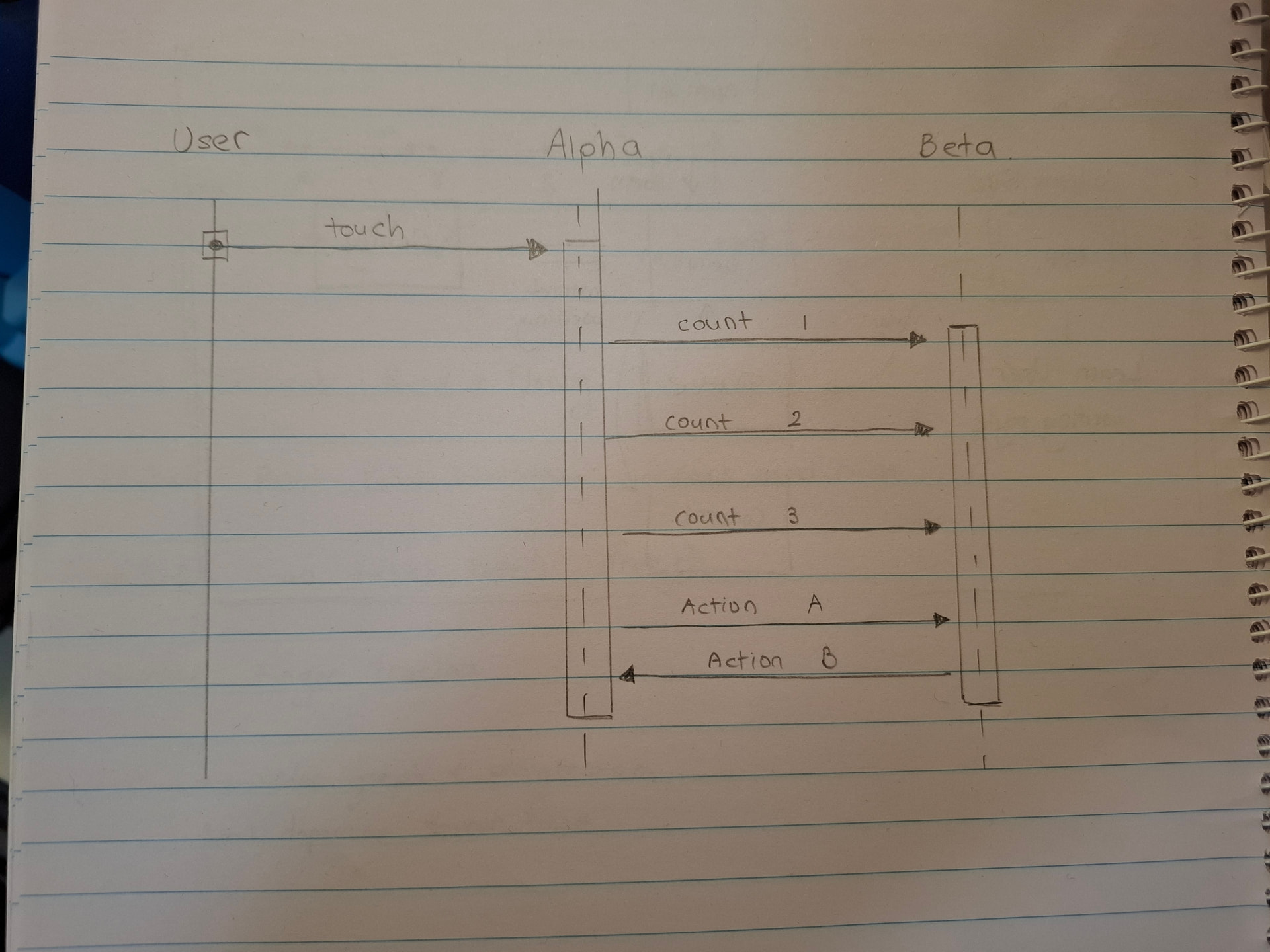
The diagram reads like this. The participants within the conversation are listed as the headers on the top. The participants that initiate communications are drawn towards the left, and the ones that just respond are drawn towards the right. Messages from one participant to another go left and right. And the later messages go down the page.
Here the user as is the first initiator. When the user sends a touch signal onto the screen of Alpha, it then triggers a sequence of events.
I’ve engineered Alpha to pass 3 count messages to Beta.
Each of these messages are sent on the “count” channel with the data being the count number.
I will use this count number to have the robots display the Scissors, Paper, Rock text.
After the count, Alpha will send over its action. In my code, I’ve sent it to the “shoot” channel.
In this message, the payload will be an integer representing the scissors paper or rock (mapped to 1, 2, 3 respectively)
Upon receiving this payload, Beta will return a message back to Alpha on the “shoot_response” channel. The payload here will be:
-
Alpha’s original action
-
Beta’s chosen action
Once this sequence of messages have been performed, the robots should have enough information to determine who won and who lost.
Implementation
Let’s do the easy stuff first!
How do we model the scissors paper rock game?
The simplest implementation is by creating Enums to represent the selections of scissors paper rock.
Normally I would model the game like this using the Enum Python library:
from enum import Enum

class Action(Enum):
    SCISSORS = 0
    PAPER = 1
    ROCK = 2

class Result(Enum):
    WIN = 0
    LOSE = 1
    DRAW = 2
This allows us to use the meaningful constants like scissors, paper, and rock instead of actual integers which can get messy.
I tried it but it seems like MicroPython does not support this library and we might need to go back to the oldschool use of constants.
As a quick and dirty implementation, I assigned the scissors, paper, and rock values to the integers 0, 1, and 2. For the result values of win, lose, and draw I assigned them to 3, 4, and 5 respectively.
# Define Scissors Paper Rock Game Constants
SCISSORS = 0
PAPER = 1
ROCK = 2

WIN = 3
LOSE = 4
DRAW = 5
The game loop looks like this.
Alpha will count three times before dueling with Beta.
The pseudocode will look like this:
count 1
wait
count 2
wait
count 3
wait
shoot
Let’s turn this into actual code:
def start_game():
	robot.sound.play(CHIRP)
	print_on_screen("Scissors")
	robot.link.send_message("count", 1)
	wait(1000, MSEC)
	robot.sound.play(CHIRP)
	print_on_screen("Paper")
	robot.link.send_message("count", 2)
	wait(1000, MSEC)
	robot.sound.play(CHIRP)
	print_on_screen("Rock")
	robot.link.send_message("count", 3)
	wait(1000, MSEC)

	action = get_random_action()
	print_action(action)

	robot.link.send_message("shoot", action)
Sidenote:
I found the printing text onto the center of the screen to be rather annoying, so I wrapped some instructions together into a separate function.
def print_on_screen(text):
    robot.screen.clear_screen()
    robot.screen.set_cursor(5, 2)
    robot.screen.print(text)
Let’s trigger this with a touch by wrapping it in a pressed handler. We will choose the released handler since we want the action to occur when the user’s finger lifts up from the screen rather than pressing down. It’s a subtle difference but it will make the user interface a lot nicer to operate.
robot.screen.released(start_game)
Now that we can successfully send the messages, we need to actually listen out for the messages too. I did this by setting up the handlers to be added to the robot. I handled three different message types, count, shoot and shoot answer. Each of these had their own functions.
When we run these lines of code, the robot waits for a message with these strings as the second argument. When those messages arrive, then the handlers are triggered.
robot.link.handle_message(handle_count, "count")
robot.link.handle_message(handle_shoot, "shoot")
robot.link.handle_message(handle_shoot_answer, "shoot_answer")
Handling the count message is straightforward. Whatever value we get as the argument for the count, we map it to scissors, paper or rock to display on screen.
def handle_count(message, count):
    print(f"Message: {message}, Count: {count}")
    if count == 1:
        print_on_screen("Scissors")
    elif count == 2:
        print_on_screen("Paper")
    elif count == 3:
        print_on_screen("Rock")
We do the same thing for the shoot command when we receive this message. The robot determines an action - either scissors paper or rock, displays on screen what it chose and then sends a message to the other robot.
def handle_shoot(message, action_opponent):
    print(f"Message: {message}, Action Received: {action_opponent}")
    action_mine = get_random_action()
    print_action(action_mine)

    wait(1000, MSEC)
    robot.link.send_message("shoot_answer", action_opponent, action_mine)

    result = get_game_result(action_mine, action_opponent)
    handle_shoot_result(result)
When the other robot receives the shoot answer message, it is able to also determine the winner of the round and display the result.
def handle_shoot_answer(message, action_mine, action_opponent):
    print(f"Message: {message}, Action Received: {action_opponent}")
    result = get_game_result(action_mine, action_opponent)
    handle_shoot_result(result)
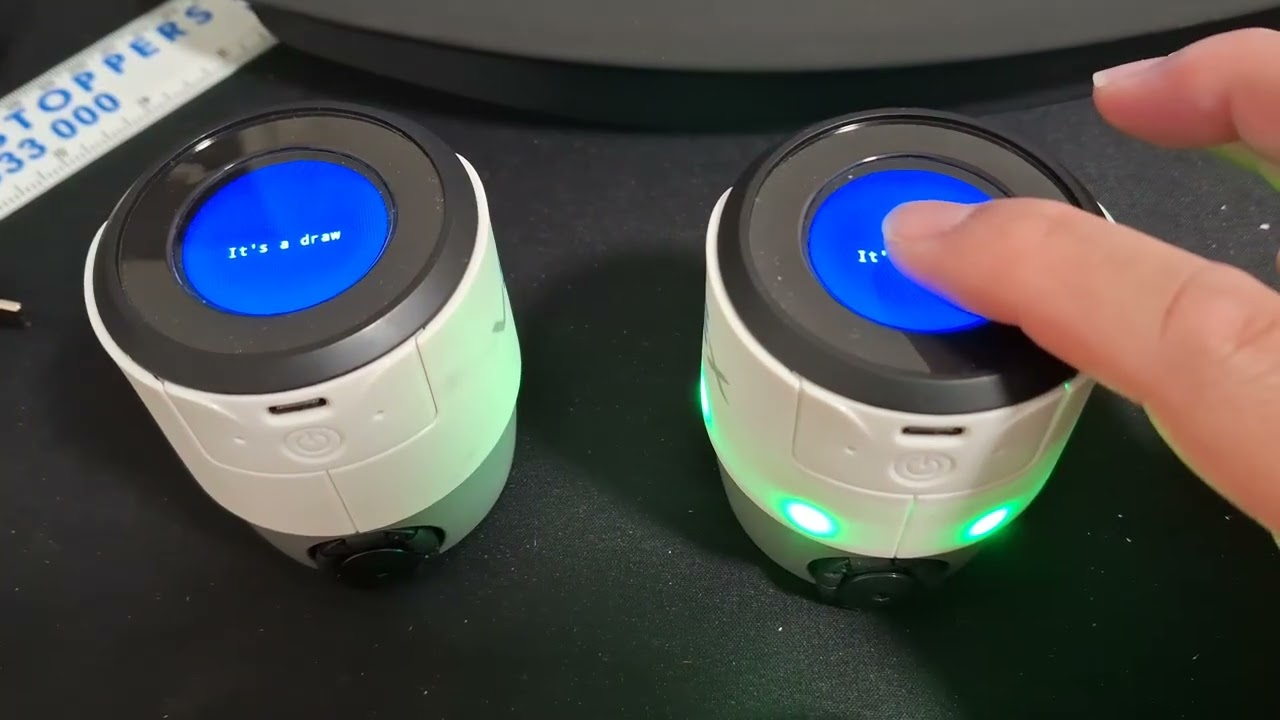
Final Demo:
Conclusion
This project can be polished up much nicer with custom images, sound effects and I was thinking you can have the robot hurry to grab the nearest coloured barrel depending on its win/lose status. Like a less aggressive version of Hammer and Helmet.
Unfortunately, this messaging mechanism only works between two robots and there’s no way of having more robots interacting without human intervention. If we wanted to do that, we’ll have to look at the Station Mode style messaging.
Even in this raw state, I hope you found this encouraging to explore this concept of robot to robot messaging. There is a lot that it can do and this is just the tip of the iceberg.
I’ve put my code up here for your perusal.