Thanks to everyone who joined the Robotics Applications Using AI Large Language Models (LLMs) with VEX AIM workshop! In this session, we explored how VEX AIM can connect robotics, computer vision, and AI tools to create new learning opportunities for students.
We started by introducing the AIM WebSocket Library and discussed different ways to download and run projects, including downloading through USB or Bluetooth using VEXcode AIM and running projects over Wi-Fi using WebSocket. Participants then explored how AIM can communicate with a computer, stream video from the robot’s camera, and use that data in more advanced applications.
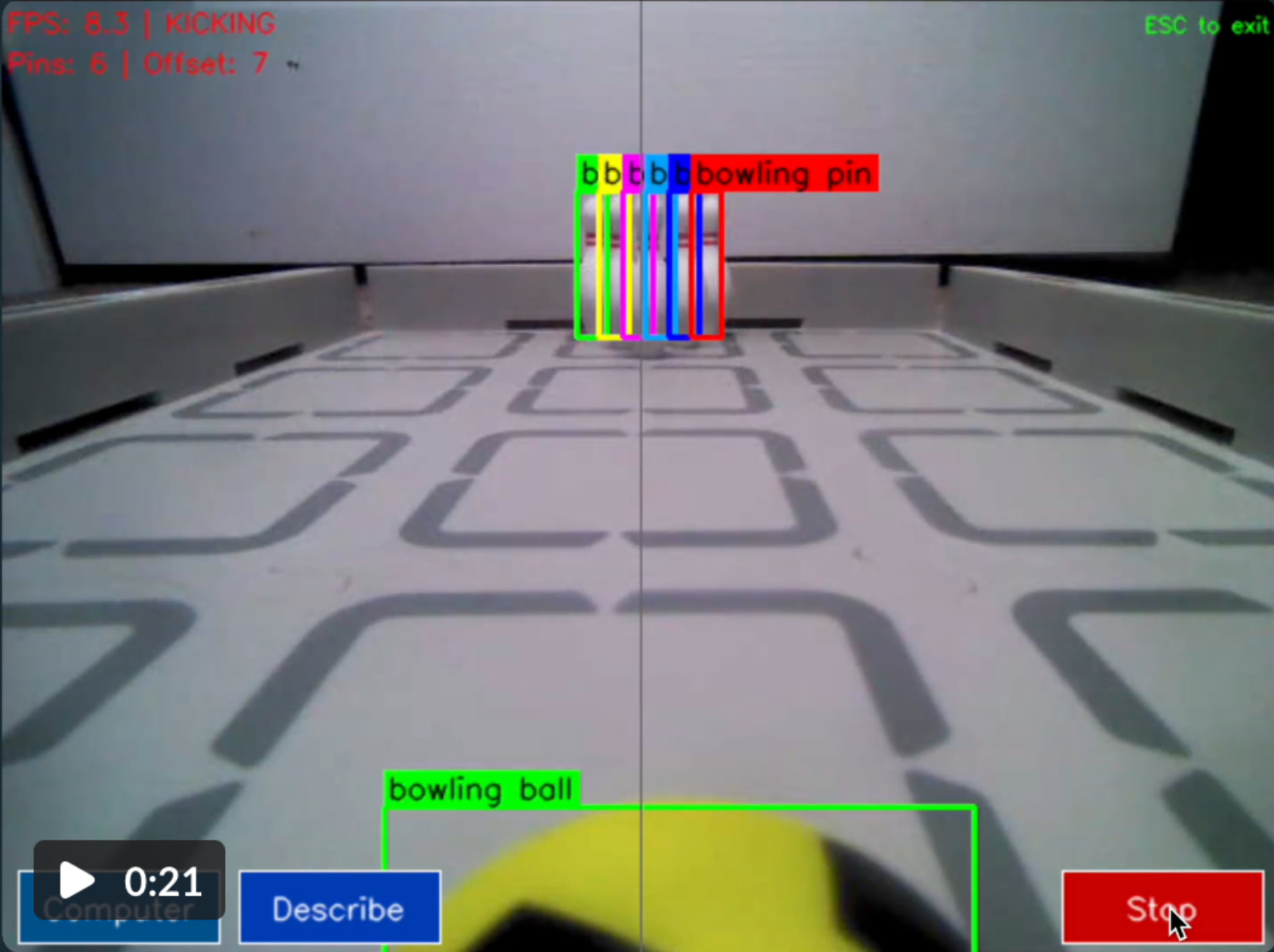
During the workshop, participants worked through activities like programming AIM to kick the ball just like they would in VEXcode AIM, using a first-person-view video stream, and modifying prompts so an AI model, like Gemini, could help detect objects such as bowling pins. We also explored how LLMs, like Claude, can support code generation by helping improve robot behaviors, such as planning multiple bowling attempts and counting how many pins are standing or on the floor.
One big takeaway from the workshop was that VEX AIM can be more than a coding robot — it can become a platform for exploring real-world AI, robotics, computer vision, prompt design, API-based programming, and AI-assisted coding in a hands-on way.
Workshop Materials
Robotics Applications Using AI Large Language Models with VEX AIM slides: AIM LLM.pdf (1.3 MB)
Code Files:
aim_llm_workshop.zip (5.0 MB)
Technical Setup for AI Computer Vision
For anyone who wants to continue experimenting with the examples, here are a few technical setup notes:
-
Set up the AIM WebSocket Python environment.
After cloning the AIM WebSocket Library, create and activate a virtual environment from the root directory of the cloned repository:python -m venv venvOn Windows:
venv\Scripts\activateOn macOS, Linux, or WSL:
source venv/bin/activateThen install the required packages:
pip install -r requirements.txt -
Create a
.envfile for your API keys.
In your project folder, create a file named.env. Add your Gemini API key to that file:GEMINI_API_KEY=your_api_key_hereIf you are also using Google Cloud Vision with a service account, you will need something like:
GOOGLE_APPLICATION_CREDENTIALS=path/to/your-service-account-file.jsonDo NOT share your
.envfile publicly or commit it to GitHub. -
Get a Gemini API key.
You can create or manage a Gemini API key through Google AI Studio or Google Cloud. In Google Cloud, make sure the key is connected to the correct project.The workshop examples used Gemini, but the code can be modified to use other LLM platforms as well, such as OpenAI, Claude, or a locally hosted model, depending on your classroom goals and available tools. For the vision examples, make sure the model or service you choose supports image input or vision-language tasks.
-
Enable the needed Google Cloud APIs.
If you are using Gemini, make sure the Generative Language API is enabled for the project. If you are using the Google Cloud Vision example, make sure the Cloud Vision API is enabled. For the Vision example, you may also need to set up billing and authentication in Google Cloud.
LLM Coding Assistant “Vibe Coding”
Separately, you can also use AI coding assistants inside VS Code for “vibe coding” and code modification:
-
Install an AI coding extension in VS Code.
Open VS Code, go to the Extensions panel, and search for one of the following:- Claude Code by Anthropic
- Codex or ChatGPT by OpenAI
- GitHub Copilot / Copilot Chat
-
Sign in and connect your account.
After installing the extension, sign in with the matching account. Depending on the tool, this may require a Claude, ChatGPT, OpenAI, or GitHub Copilot account. -
Open the AIM WebSocket project folder in VS Code.
Once the project is open, you can ask the AI assistant to help explain, modify, or extend the code. For example, you might ask it to:- Explain what the WebSocket code is doing
- Modify the prompt used for object detection
- Help switch the example from Gemini to another vision-language model
- Add comments for students
- Suggest ways to improve the robot’s behavior
-
Review and test the code carefully.
AI coding assistants can be helpful, but they can also make mistakes. Always review the suggested code, make sure your.envfile and API keys are not shared, and test the project before using it with students.
Additional resources
- VEX AIM WebSocket Library: WebSocket | VEX AIM - WebSocket API — VEXcode Documentation
- VEXcode API Reference: https://api.vex.com/aim/
Hope these resources help you continue exploring AI, robotics, and computer vision with VEX AIM!